For course creators recording lesson after lesson
A course is a stack of 8 to 15 minute lessons, each filmed to camera from a script with a fair number of retakes. Cutroom AI cleans each lesson the same way, keeps your best takes and gives you chapters and caption files for your course platform.
Updated November 12, 2026
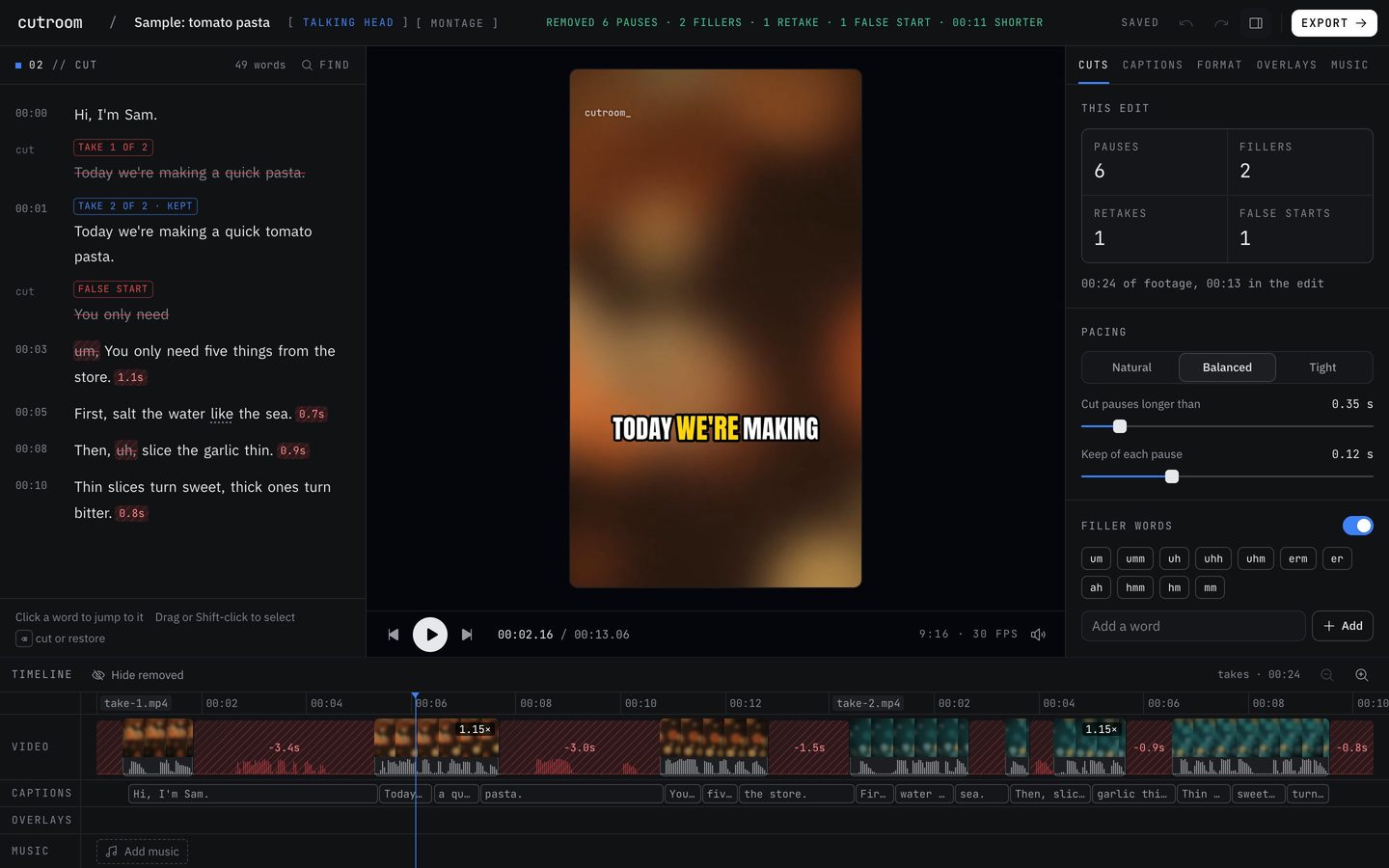
The editing job
Say you're building a course on bookkeeping for freelancers, twelve lessons long. Each lesson has a script. You film it in segments, redo the sentence with the tricky number, and end up with 20 minutes of footage for a 10-minute lesson. Then you do that eleven more times.
The cleanup is the same every time: cut the pauses, cut the flubs, keep the best version of each line, caption it, keep the look consistent across lessons. Repetitive work like that is where Cutroom AI earns its place.
The workflow
- 01Paste the lesson script into the recorder at /record, set the 10-minute take length if it helps, and record in takes. Or film on your own camera, in segments.
- 02Import the takes as one Talking head project. Lines are matched across files and the best take of each is kept.
- 03Set Pacing to Natural. Teaching needs room to breathe, and Natural only trims gaps over half a second, down to 0.2 seconds.
- 04Fix technical terms once in the transcript. Remembered spellings keep "accrual" and "Schedule C" right in every later lesson.
- 05In the Clips tab, copy the chapters for the lesson page if your platform shows them.
- 06Download the SRT for your course platform's captions and export the MP4 in 16:9.
- 07Press "Save as recipe" and start the next lessons from it.
Batching a module
If each lesson is a single file, you can import up to 10 lessons at once with "Cut each file as its own video", one finished edit each, all from the same recipe. A lesson filmed as several takes is different: give it its own project, so its takes are compared against each other rather than cut into separate videos.
What to film
- One script per lesson, read in takes, with the camera stopped between takes.
- Horizontal framing if the lessons are watched on a laptop. You can still cut vertical promo clips from the same footage, with the crop following your face.
- The same spot, light and mic for every lesson. A recipe keeps captions and format consistent, but it can't match lighting you changed halfway through.
- A beat of silence before your first word, so the opening isn't tangled with your hand reaching back from the record button.
Lesson length and plans
A full cleaned lesson is limited by how much footage the edit uses: 3 minutes on Free, 30 on Starter, 60 on Pro. Check your longest lesson against those numbers before you choose a plan. Recordings up to 180 minutes open on any plan for making clips.
Honest limits
There's no screen recorder. If your lessons cut between you and a spreadsheet, record the screen with another tool. You can lay that recording over your talking-head edit as a video overlay, but Cutroom AI won't switch between the two for you.
It doesn't host your course, build quizzes or upload to your course platform. You export MP4 and SRT files and upload them yourself.
There's no XML export, so you can't send the timeline to Premiere Pro or Final Cut for finishing.
Caption translation is off. Captions come out in the language you spoke.
Questions
Do I get caption files for my course platform?
Yes. Download an SRT from the Captions tab. It's timed to the edited lesson, not the raw footage.
Will unreleased course footage leave my computer?
No. Video and audio never upload. The cut list and transcript text sync under a random id so the project opens in your other browsers.
Can I record with a teleprompter?
Yes. The recorder at /record scrolls your script at about 155 words a minute at 1x, adjustable from 0.75x to 1.5x.
Can I make promo clips from my lessons?
Yes. The clip finder in the Clips tab ranks short stretches from any lesson, and each clip opens as a vertical project with captions.
Keep reading
- FeatureRead your script, record your takes, get the edit
- FeatureKeep the best take of every line, across separate files
- FeatureEdit a full-length talk without chopping it into shorts
- FeatureAuto captions timed to every word you say
- FeatureEdit a stack of separate videos in one go
- GuideHow to use a teleprompter for talking-head videos
Try it on your own footage.
The editor opens in your browser with no account, and the sample project doesn't use an edit.