For teachers who record lessons and lectures
A five-minute explainer, a 50-minute lecture, a quick review clip before the test. Cutroom AI cleans up the recording, cuts it into short clips by topic and gives you a caption file, all on your own computer.
Updated November 12, 2026
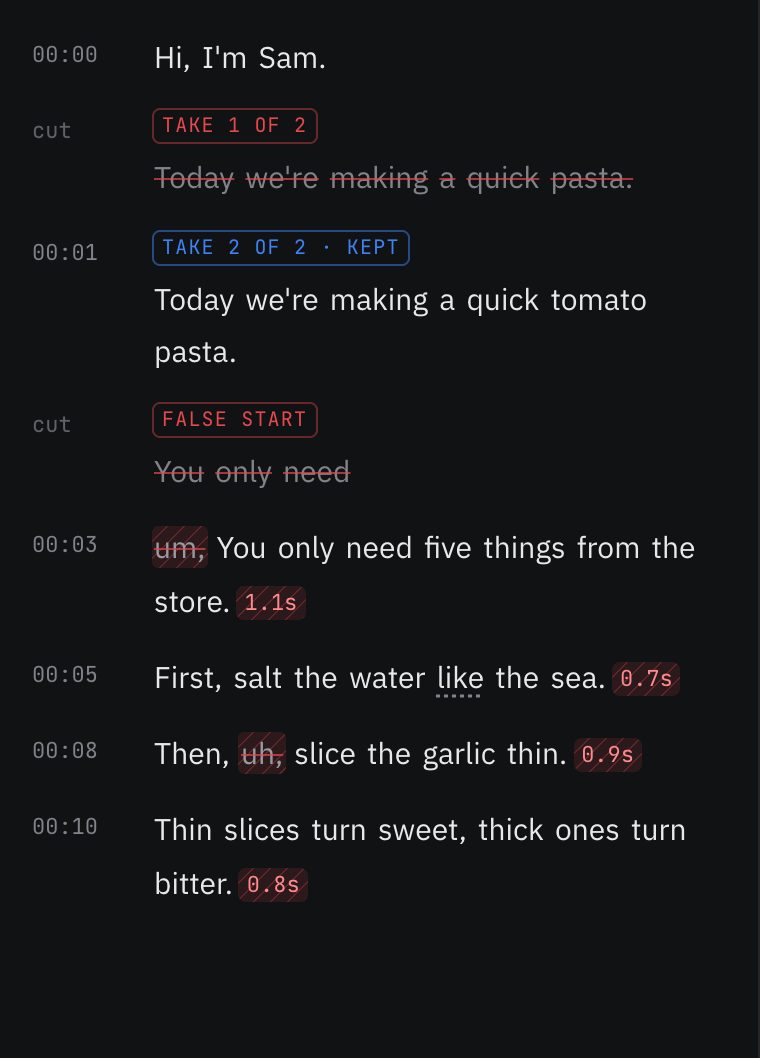
The editing job
Teaching videos come in two sizes. Short explainers for a flipped classroom, filmed at your desk, usually with a restart or two. And full lectures, recorded in the room, that students want to rewatch in pieces: the ten minutes on mitosis, not the whole period.
Both need captions. Students who are deaf or hard of hearing need them, and so does anyone studying on a bus.
Workflow for a recorded lecture
- 01Import the lecture recording as a Talking head project. Up to 180 minutes opens on every plan.
- 02Open the Clips tab. Chapters from the transcript give you the lecture's sections with start times. Copy them for your class page or YouTube.
- 03Search a topic, like "mitosis", in "Only clips that mention", and make a clip of each section students ask about. The 1.5-3 min length suits review clips.
- 04Clips open as vertical projects. Switch a clip to 16:9 in the Format tab if students watch on laptops.
- 05Download the SRT from the Captions tab for your learning platform, or export with captions burned in.
Workflow for a short explainer
- 01Write the explainer and record it at /record, or film it in takes.
- 02Import the takes together. The best take of each line is kept, and pauses and ums are cut.
- 03Set Pacing to Natural so students have time to follow.
- 04Fix subject words once in the transcript, like photosynthesis or the name of a unit. Remembered spellings keep them right in later videos.
- 05Export at 16:9 with an SRT.
What to film
- Wear a clip-on mic. Classroom recordings suffer most from distance and room echo, and the transcript drives the chapters, clips and captions.
- Repeat student questions into the mic before answering. The transcript only knows what it can hear.
- Stay in frame if you want a vertical crop. The crop follows your face, so the whiteboard may fall outside a 9:16 frame. Keep whiteboard lessons at 16:9, or crop and pan by hand.
- Say the topic out loud when you start a new one: "Now, mitosis." The search and the chapters both work from the words you say, so a clear signpost makes each section easier to find.
Honest limits
There's no screen recording. Slides or a document camera need another recorder, and you can add that file as a video overlay.
It doesn't connect to a learning platform. You export MP4 and SRT files and upload them.
Caption translation is off. For families who speak another language at home, captions come out only in the language you taught in. It transcribes 16 spoken languages, so a lesson taught in Spanish gets Spanish captions.
There's no department workspace. Projects are saved in the browser you use, with a synced copy of the cut list so they open in your other browsers.
On student privacy: video and audio never upload. The cut list and transcript text sync under a random id. If students speak in a recording, check your school's policy before you post clips.
Questions
Can I get captions for accessibility?
Yes. Captions are timed to each word from the transcript, and you can download them as an SRT file. Read them once before you publish, especially names and terms.
Can it split a lecture into topics?
The Clips tab finds chapters from the transcript and lets you search for a word, so you can cut a clip for each topic.
Is it free for teachers?
The free plan works for anyone without an account: 3 edits a month at 720p with a small watermark. There's no separate education plan.
Keep reading
- FeatureAuto captions timed to every word you say
- FeatureFind the clips worth posting in a long recording
- FeatureEdit a full-length talk without chopping it into shorts
- FeatureRead your script, record your takes, get the edit
- GuideHow to add captions to a video
- AnswerWhat languages does Cutroom AI transcribe?
Try it on your own footage.
The editor opens in your browser with no account, and the sample project doesn't use an edit.