Find the clips worth posting in a long recording
Drop in a talk, a stream or a podcast episode up to 180 minutes long. The clip finder scores every sentence, draws an attention curve over the whole recording and hands you ranked clips that start and end on full sentences.
Updated November 12, 2026
How clips are scored
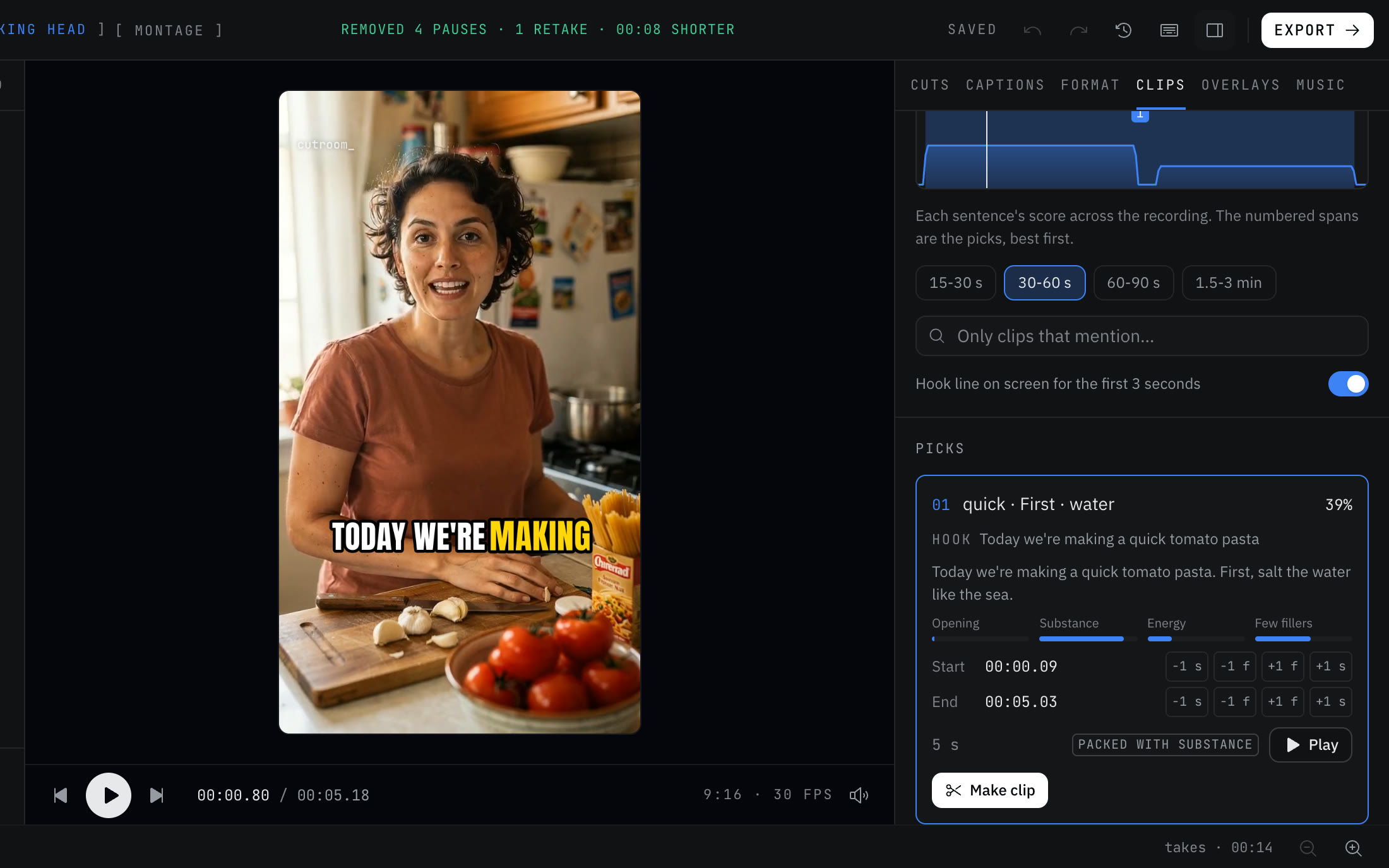
Every sentence gets four scores, shown under "Why it scored" on each pick:
- Opening: how strongly the first line pulls a listener in.
- Substance: how much gets said per second, as opposed to warm-up and repetition.
- Energy: how lively your voice is in that stretch.
- Few fillers: how free the stretch is of ums and uhs.
The attention curve
Above the picks sits a curve of each sentence's score across the whole recording. The numbered spans on it are the picks, best first. Click anywhere on the curve to jump there and listen. It's a quick way to see that minutes 20 to 30 of a webinar were the strong stretch and the Q&A sagged.
Talk about the recording itself, such as "can you hear me", never becomes a clip.
How to use it
- 01Open the editor, choose Talking head and import the recording. Recordings up to 180 minutes open on every plan. Long files are read in windows, so memory stays flat.
- 02Open the Clips tab and choose a length: 15-30 s, 30-60 s, 60-90 s or 1.5-3 min.
- 03To stay on one subject, type a word into "Only clips that mention". Only clips whose transcript contains it are listed.
- 04Play a pick. Use the -1 s, -1 f, +1 f and +1 s buttons to move its start or end by a second or a single frame.
- 05Turn on "Hook line on screen for the first 3 seconds" if you want the clip's opening line as text on screen.
- 06Press "Make clip" on one pick, or press "Make all" and then "Export all". Each clip opens as its own vertical project, and the original stays as it is.
Mark your own clip
The picks are a starting point. If you know the moment you want, play the recording and press I at the start and O at the end. Add another range and the two are joined into one clip, which helps when the setup is at minute 12 and the punchline at minute 14. Clips you mark keep captions and follow the face like the automatic ones.
What it won't do
It scores speech, so it can't see. A great visual moment with no talking, like a dog stealing the toast, won't rank. Mark it yourself or use montage mode.
It doesn't write titles or hooks. The hook line on screen is a sentence from the clip itself, because AI-written hooks and titles are switched off.
It doesn't post or schedule anything, and it can't pull a video from a YouTube link. You need the file on your device.
It won't open a recording longer than 180 minutes. Split it and import the parts.
When another approach is better
If the recording is already a tight two-minute video, you don't need clip hunting. Use versions, which give you a 30-second and a 15-second cut beside the full edit.
If you're cutting clips of two people talking and want the camera on whoever speaks, Cutroom AI's multicam doesn't do that yet.
Questions
How long can the recording be?
Up to 180 minutes on every plan, including Free. Clips cut from it export on any plan, even when the full recording is longer than your plan allows for one cleaned edit.
Does the recording upload?
No. Scoring runs in your browser. The video and audio stay on your device.
Can I find every clip where I talk about pricing?
Yes. Type "pricing" into "Only clips that mention" and the list narrows to clips that say it.
Why didn't it pick the start of my stream?
Openers about the recording itself, like checking the mic, are skipped on purpose. If you want that part, mark it with I and O.
Keep reading
Try it on your own footage.
The editor opens in your browser with no account, and the sample project doesn't use an edit.