For founders who are also the video team
Nobody on a five-person team has time to edit a product update. Cutroom AI turns two or three rough takes into a captioned, cleaned-up video, and your unreleased product footage never uploads.
Updated November 12, 2026
The editing job
Your videos are short and frequent: a two-minute product update for customers, a launch post for LinkedIn and X, a 90-second recap of what shipped this month, a hiring video for the careers page. You film them at your desk, often more than once, and nobody wants to open a pro editor at 9 pm for a two-minute clip.
The footage is often sensitive, too. A feature that isn't announced yet. Numbers on the whiteboard behind you.
A typical week
Monday you record a 90-second update on the new billing page in three takes, with billing-page.mov from your screen recorder. The edit keeps your best take of each line, drops the screen clip over the line where you name the page, and cuts the ums. From "See versions" you take the tight cut with keyword captions for LinkedIn, then switch the destination to X and take the 30-second clip. On Thursday a sales call recap goes the same way, from the same recipe, so both posts look like they came from one company.
The workflow
- 01Write the update as short sentences and record two or three takes at /record.
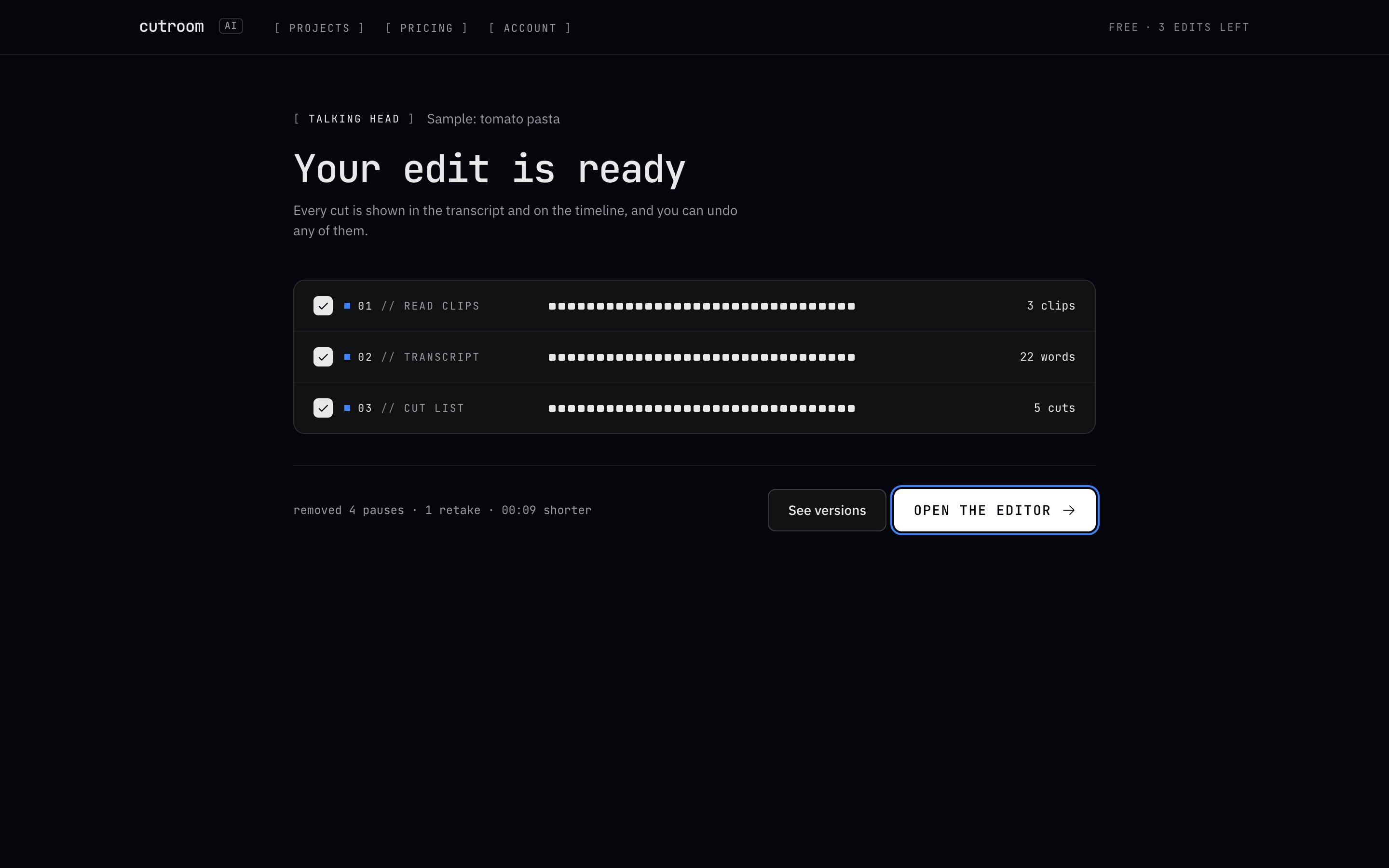
- 02Press "Edit these takes". The analysis runs in your browser: transcription, take scoring and cleanup. In our test, an 87-second clip reached a finished preview in 15.6 seconds the first time and 11.5 seconds after the speech model was cached.
- 03Check the Best takes panel. Fix a misheard product name once, and remembered spellings handle it in every update after.
- 04Press "See versions". Choose LinkedIn for a 4:5 cut, X for 16:9 or Shorts for 9:16, and pick the cuts you like.
- 05Export the picked versions together.
What to film
- Short sentences, one idea each. Take matching and pacing both work better that way.
- A background you've checked. Cutroom AI won't blur a whiteboard for you.
- Your face centered and lit from the front. Face position is part of each take's score.
- Product demos recorded with your usual screen tool. Name the file after the feature you mention, like billing-page.mov, and import it with your takes. A clip with no speech becomes b-roll and lands over the line where you say "billing page".
Honest limits
There's no screen recording. Product demos need a separate screen recorder.
There's no team workspace. A project opens in your own other browsers through its synced cut list, but you can't invite a cofounder to review or comment.
AI-written scripts, hooks and titles are switched off. You write the words.
It doesn't post or schedule. Export, then post to LinkedIn or X yourself.
There's no eye-contact fix and no AI avatar. If you read from a second monitor, it shows.
Why on-device matters here
Your video and audio never upload. Transcription, scoring and the export all happen in your browser, on your graphics card through WebGPU or on the processor without it. A copy of each project's cut list and transcript text syncs under a random id so the project opens in your other browsers, so treat the transcript like any note you keep in a cloud app.
Questions
Can I share a project with my cofounder?
Not as a team. There's no team workspace. Export the MP4 and send that.
Will it run on my work laptop?
It needs WebCodecs, so current Chrome, Edge, Arc or Safari 26. If the browser lacks it, the editor tells you before you start.
Can I make the LinkedIn and X versions from one recording?
Yes. Choose a destination under "Made for", export the versions you picked, then switch the destination and pick again.
Do I need to sign up?
No. The free plan works without an account: 3 edits a month at 720p with a small watermark.
Keep reading
Try it on your own footage.
The editor opens in your browser with no account, and the sample project doesn't use an edit.