How to edit talking-head videos faster
Most of the time in a talking-head edit goes to watching footage at normal speed to find what to cut. Film so there is less to find, edit in a fixed order, and let software do the finding.
Updated November 12, 2026
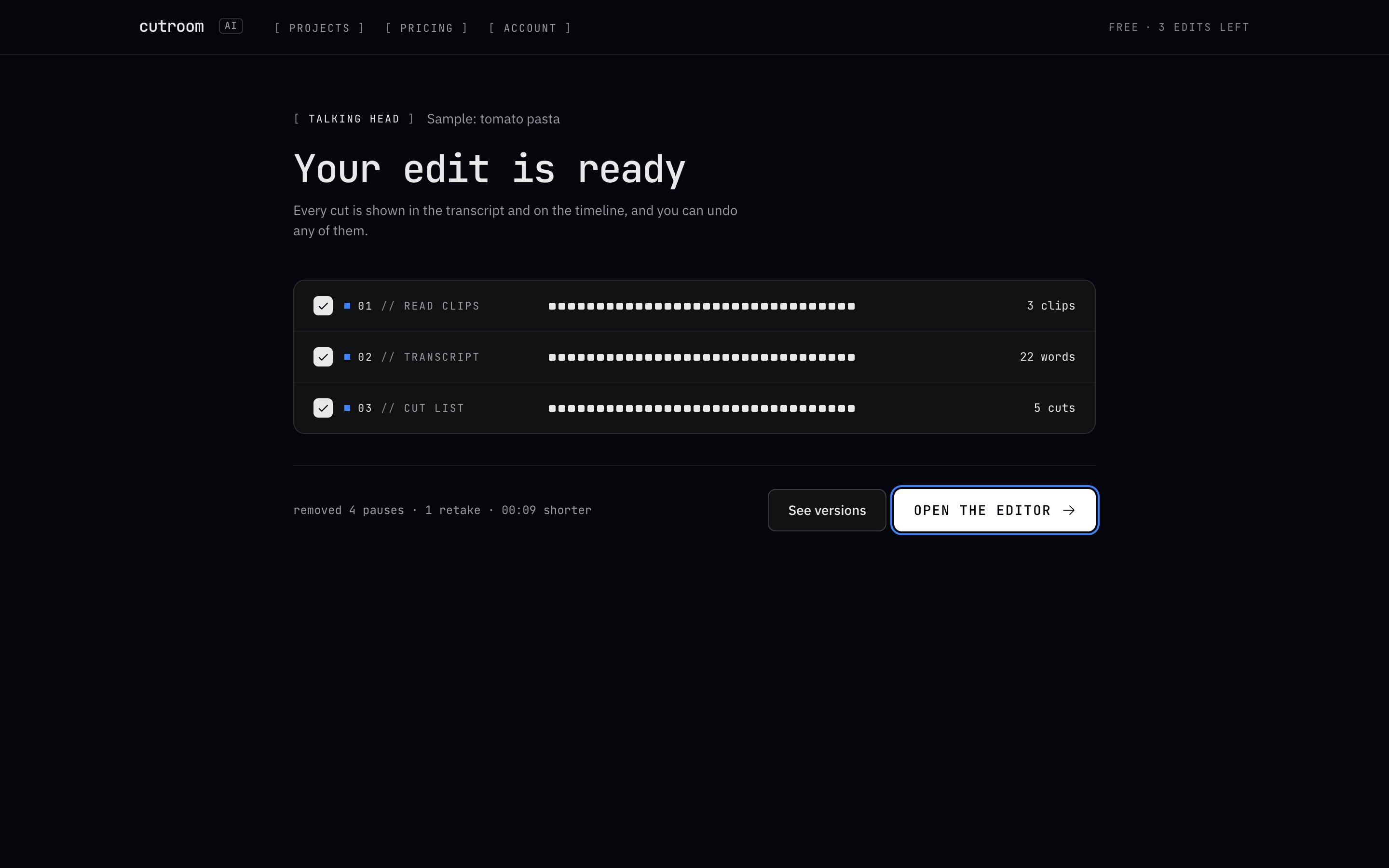
Where the time goes
Add up a typical talking-head edit and the cutting itself is small. The time goes to watching the footage once in real time, listening across every cut, timing captions, reframing for each platform and exporting each version.
So the biggest savings come from not needing to watch everything at normal speed, and from not doing any step twice.
Film habits that save editing
- Work from a script or a tight outline. Wandering takes longer to cut than it took to say.
- After a slip, restart the whole sentence, not the last few words.
- Pause before you restart. That gap is where the cut goes.
- Keep rolling between takes so you have one file, not twenty.
- Film several videos in one session in the same spot. Same light, same framing, same settings.
Edit in this order
Each step changes the timing of everything after it, so do them in this order and you never redo one.
- 01Structure: drop the retakes and choose the best take of each line.
- 02Pace: cut the pauses and fillers.
- 03Picture: punch-ins, b-roll and reframing.
- 04Captions: last of the timing work, since every cut before this moves them.
- 05Format and export: one pass per destination.
Keyboard habits in any editor
Learn the shortcuts for play, split, delete and jump to the next edit, and keep one hand on them. Read the transcript instead of watching where your editor has one. Play at a faster speed for review passes, and only drop to normal speed around the cuts.
In Cutroom AI: Space plays, S splits, Backspace cuts or restores the selection, Up and Down jump between cuts, Left and Right step one frame, Shift with an arrow steps one second, Cmd or Ctrl with Z undoes, H opens version history and ? shows every key.
The Cutroom AI way
- 01Drop your takes in on the Projects page, or record them at /record with the script card.
- 02The analyze screen transcribes and cuts on your device. In our test, an 87-second clip reached a finished preview in 15.6 seconds the first time and 11.5 seconds after, once the speech model was cached in the browser.
- 03Read the transcript instead of watching. Every cut shows as struck-through text, and a click restores it.
- 04Check pacing and “Best takes” in the Cuts tab.
- 05For b-roll, name photo files after the line they belong to and import them with the takes. Each lands over the matching line, and unmatched ones wait in the Overlays tab under “Photos to place”.
- 06Set the look in the Captions and Format tabs, then export. Every export runs checks for length, audio sync, black frames, frozen frames at cuts, clipped words and frame size.
Review in one pass
Read the transcript top to bottom once. Every removed word is struck through, so you see the whole edit in the time it takes to read it. Stop only where something looks wrong: a struck word you need, a sentence that reads oddly, a take you want to compare. Then play those spots and nothing else.
Let the export checks do the last watch for you. If a check flags black frames, a frozen frame at a cut or a clipped word, it tells you where to look.
Batch several videos at once
On the Projects page, turn on “Cut each file as its own video” and drop in up to 10 videos. Each becomes its own finished edit. When you like an edit's settings, use “Save as recipe” to keep its format, captions, look and cutting rules by name and start a batch from them.
To export a batch, select the projects and click “Export selected”. And for one video that needs to go to several places, “See versions” lays out natural, tight and hook-first cuts plus 30 s and 15 s clips from the same analysis.
Mistakes to avoid
- Polishing color before the structure is settled. Half of what you polished gets cut.
- Watching at normal speed what you could read in a transcript.
- Captioning before cutting, then retiming everything.
- Rebuilding the same edit from scratch for each platform.
Questions
How fast is Cutroom AI?
In our test, an 87-second clip reached a finished preview in 15.6 seconds the first time and 11.5 seconds once the speech model was cached. Longer videos take longer.
Can I edit several videos at once?
Yes. Up to 10 separate videos at once from the Projects page, one finished edit each.
Does every change use up an edit?
No. An edit is one automatic cut of a new project. Changes inside the editor are free.
Do I have to watch the whole video?
No. Read the transcript, where every cut is marked, and play only the spots you want to hear.
Keep reading
Try it on your own footage.
The editor opens in your browser with no account, and the sample project doesn't use an edit.