How to remove um and uh from a video
Cut the hard fillers like um, uh and hmm. Leave most of the soft ones like "like" and "you know". Make each cut at the quietest point so the sentence still sounds like one breath.
Updated November 12, 2026
Hard fillers and soft fillers
Um and uh carry no meaning. They're the sound of you thinking, and cutting them only makes you sound surer.
Soft fillers are different. "I like this pan" uses "like" as a real word. "It's, like, really hot" uses it as filler. "You know" can be a real question. "Actually" can be a correction your viewer needs. Delete every one of them and you change what you said.
So a good cut treats the two groups differently: hard fillers go, soft fillers get a second look from a person.
Film with fewer fillers in the first place
- Know your first sentence cold. Most ums land at the start of a thought, while you decide how to begin.
- Pause instead of filling. Silence is easy to cut. An um that runs straight into the next word is not.
- Work from short notes, or read from a teleprompter. A loose outline you know well beats a full script you're reading for the first time.
- Slow down a little. Fillers pile up when you rush to the next point.
- Keep the mic close. A clean gap of quiet around each filler gives the cut somewhere to land.
The manual way
- 01Play the clip, or read along with an auto transcript if your editor makes one.
- 02Find each um by ear or on the waveform. It usually shows as a short low hump between two words.
- 03Razor just before it and just after it.
- 04Delete the piece and close the gap.
- 05Listen across the cut. If the um ran into the next word, you probably took the first sound of that word with it. Back off a frame.
- 06Add a very short audio crossfade so the join has no click.
Why it takes so long by hand
Every filler is two cuts and a listen. A relaxed speaker says plenty of them, so a five-minute video can mean a long session of razor, delete, play, nudge.
Then there's the picture. Each removed um is a jump cut in a talking head. You either live with the jumps, cover them with b-roll or zoom in on every other cut so the jump reads as a new shot.
The Cutroom AI way
- 01On the Projects page, turn on Advanced and set “Spoken language” if you are not speaking English. Filler lists exist for English, Spanish, French, German, Italian and Portuguese.
- 02Drop in your video. Transcription and cutting run on your device.
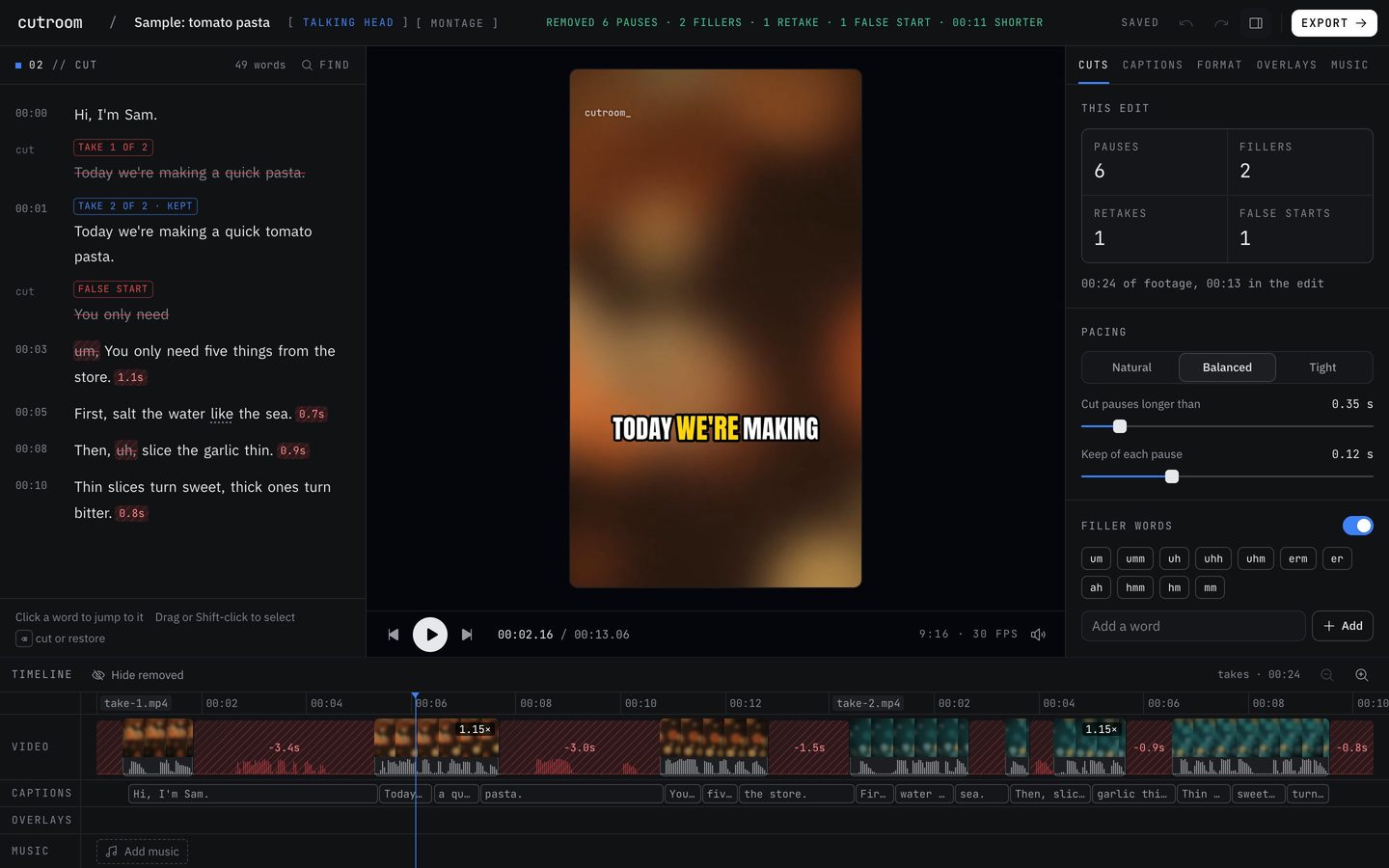
- 03Open the editor. Removed fillers show struck through in the transcript and tagged “Filler word, removed”. Soft ones show as “Possible filler, kept”.
- 04In the Cuts tab, “Remove filler words” turns the whole thing on or off. Use “Add a word” to add a habit of your own.
- 05Click a struck word and choose “Keep this word” to put it back. To cut a soft filler, select it in the transcript and press Backspace.
- 06If the picture jumps, open the Format tab and turn on “Punch in on jump cuts”.
- 07Export. The checks include “No clipped words”, which flags speech right at a cut.
Why the cuts sound smooth
Hard fillers (um, uh, erm, er, ah, hmm) are removed. Soft ones (like, you know, I mean, basically, actually, literally) are only tagged, never removed on their own, because they often carry meaning.
Each cut edge is walked to where the sound really starts and ends, snapped to the quietest moment, and given a short fade. That stops the classic problem of a clipped "th" at the start of the next word.
Mistakes to avoid
- Cutting every "so" and "like". You'll remove real words and the sentences stop making sense.
- Cutting a hesitation that does a job. Sometimes the pause before the answer is the funny part.
- Ignoring the jump cuts. Every removed filler moves your head a little. Punch in, or lay b-roll over the busiest stretch.
- Cutting fillers and then squeezing every pause to nothing. You end up sounding breathless. Pick a pacing that leaves some air.
- Forgetting the subtitle file. In tools where captions are a separate track, a caption file made before the cut still shows the words you removed.
Questions
Does it remove "like" and "you know"?
No. Those are tagged so you can find them, never removed automatically. You can cut any of them yourself.
Which languages have filler lists?
English, Spanish, French, German, Italian and Portuguese. Transcription itself covers 16 languages.
Can I put a filler back?
Yes. Click the struck word and choose “Keep this word”, or press undo.
Will removing fillers make the video look choppy?
The sound stays smooth because each cut lands on the quietest moment with a short fade. The picture jumps a little at each cut. Punch-ins or b-roll cover that.
Keep reading
Try it on your own footage.
The editor opens in your browser with no account, and the sample project doesn't use an edit.