Cut the ums, uhs and dead air out of a talking video
Import a recording and Cutroom AI shortens every long pause and removes the hard fillers. Words like "you know" get flagged for you to decide, and every cut stays visible in the transcript, so you can put a word back.
Updated November 12, 2026
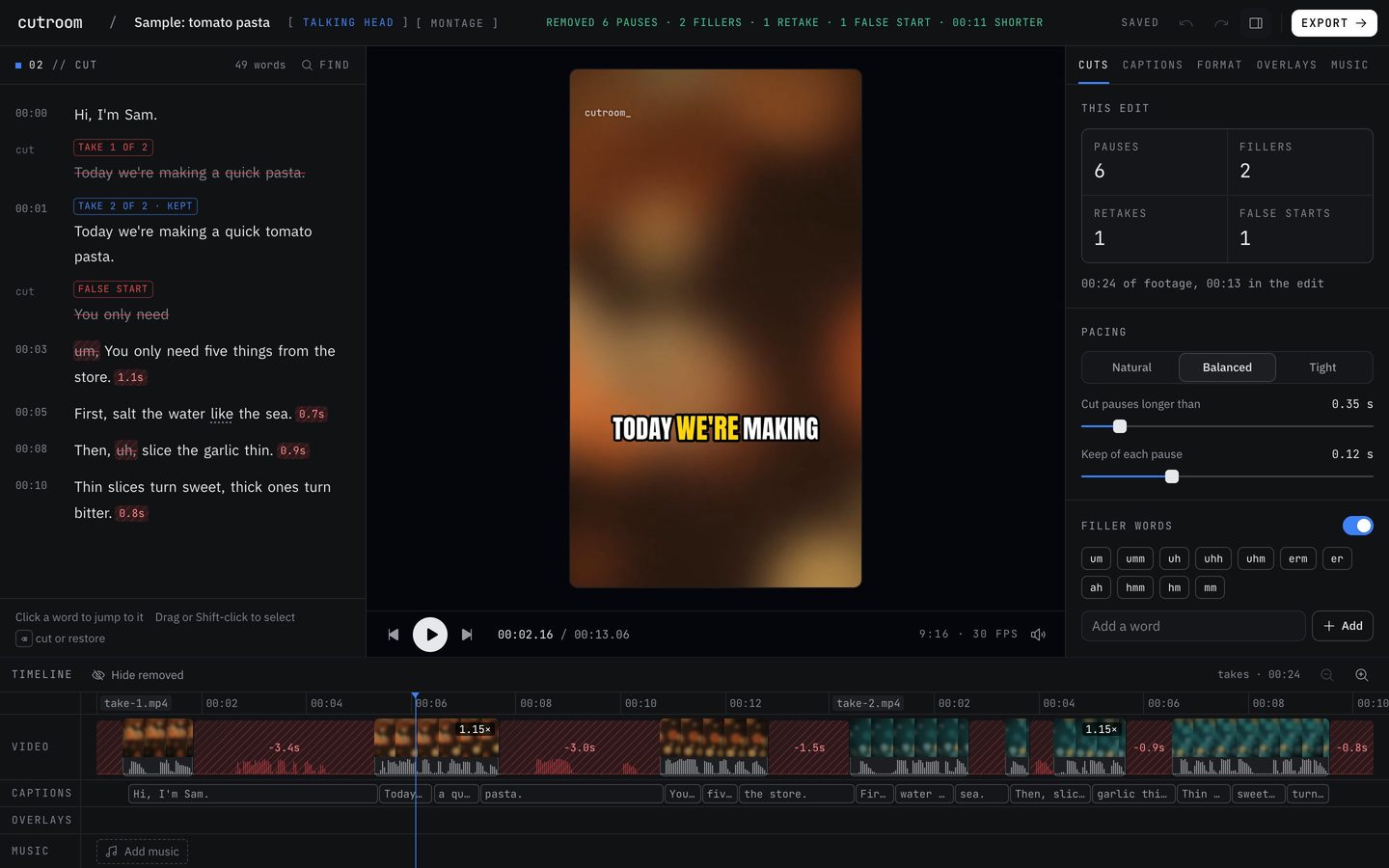
What gets removed and what only gets flagged
Hard fillers are removed: um, uh, erm, er, ah, hmm and their close cousins. Nobody misses them.
Soft fillers are only tagged: like, you know, I mean, basically, actually, literally. They stay in the edit unless you take them out, because they often carry meaning. "I mean the left drawer, not the right one" falls apart without "I mean". In the transcript a tagged word gets a dotted underline, so you can scan for them and cut the ones that are padding.
Filler lists exist for English, Spanish, French, German, Italian and Portuguese. In the other languages it transcribes, pauses are still shortened, but no filler list applies.
Three pacing presets
Pauses are shortened rather than deleted outright, so your speech keeps some air. Pick a preset under Pacing in the Cuts tab, or set the two numbers yourself with "Cut pauses longer than" and "Keep of each pause".
- Natural: gaps over 0.5 seconds are cut down to 0.2 seconds. Good for teaching and anything with a calm delivery.
- Balanced, the default: gaps over 0.35 seconds come down to 0.12 seconds.
- Tight: gaps over 0.3 seconds come down to 0.08 seconds. This is the quick rhythm of a lot of short-form video.
Why the cuts don't clip your words
A pause cut that lands a few hundredths of a second early eats the start of the next word, and you hear "ext step" instead of "next step". Cutroom AI doesn't trust the transcript's word times alone. It walks each cut edge to where the sound really starts and ends, snaps it to the quietest moment nearby and adds a short audio fade.
Then the export checks the result. One check looks for speech on either side of every cut and flags any spot where a word may have been clipped, so you know where to listen before you post.
How to use it
- 01Open the editor, choose Talking head and drop in your recording. Set the spoken language.
- 02When the analysis finishes, the Cuts tab counts what was cut (pauses, fillers, retakes, false starts) and shows how long the footage was against how long the edit is.
- 03Choose Natural, Balanced or Tight and play a minute to hear the rhythm.
- 04Read the transcript. Removed words are struck through. Click one to restore it.
- 05Got a habit word the list doesn't know? Add it under Filler words with "Add a word". It then comes out everywhere, so check the transcript afterward.
- 06Use undo and redo freely. Every edit can be undone.
What it won't do
It won't cut rambling. A sentence that goes nowhere stays in, because judging whether a thought is worth keeping needs a text model, and the cloud text features are switched off. You can strike whole sentences yourself in the transcript.
It won't remove soft fillers on its own. That's deliberate, and it's the most common surprise for people coming from tools that cut every "like".
Background hum is a different problem from pauses. There's a noise removal option for that, separate from the cutting.
When another approach is better
Some recordings need their silences. A guided breathing session, a eulogy or a dramatic reading loses its weight when every gap shrinks to a fraction of a second. Use Natural, or raise "Cut pauses longer than" so only the truly dead stretches go.
If two people are talking, the gaps between them are part of the conversation. Pause cutting still works, but listen at Natural before you go tighter.
Questions
Does it remove "like" and "you know"?
No. They're tagged in the transcript and left in the edit. Click any tagged word to cut it.
Can I put back a word it removed?
Yes. Every removed word stays visible, struck through. Click it to restore it, or press undo.
Will tight pacing make me sound robotic?
It can on a slow speaker. Tight keeps only 0.08 seconds of each long gap. If your breaths start to sound chopped, step back to Balanced.
Does it work on Spanish or French videos?
Yes. Filler lists cover English, Spanish, French, German, Italian and Portuguese. Transcription covers 16 spoken languages in all.
Keep reading
Try it on your own footage.
The editor opens in your browser with no account, and the sample project doesn't use an edit.