For coaches with a week of calls and no time to edit
You already say useful things every week: on group calls, in workshops, in a two-minute tip you film between clients. Cutroom AI finds the clips in the long recordings and cleans up the short ones, without sending your footage to a server.
Updated November 12, 2026
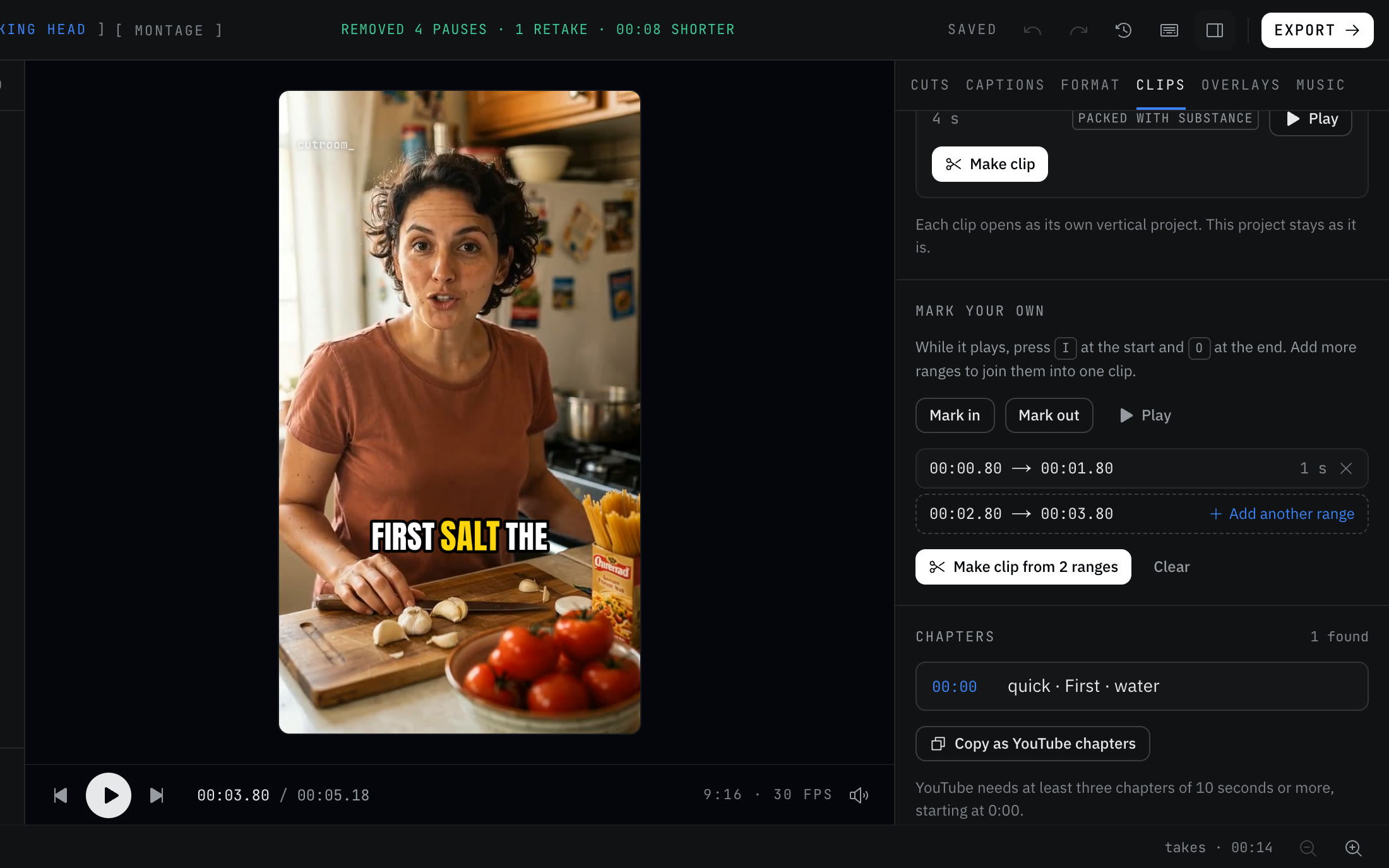
The editing job
A coach's video comes in two shapes. The long one is a 60-minute group call or workshop where, somewhere around minute 23, you explained the one idea that would make a perfect 45-second clip. The short one is a tip you film to camera, usually more than once, because the first take wandered.
The long recordings need finding. The short ones need cleaning. Both need captions for anyone watching with the sound off.
Workflow for a recorded call or workshop
- 01Save the recording from your call software as an MP4. Speaker view keeps one face on screen, which suits a vertical crop.
- 02Import it as a Talking head project. Up to 180 minutes opens on every plan.
- 03In the Clips tab, search a topic you know you covered, like "boundaries" or "pricing", with "Only clips that mention".
- 04Play the ranked picks. If the strongest stretch is split across two moments, press I and O on the first, add another range, mark the second and make one clip from both.
- 05Turn on the hook line and captions, then export. Each clip is its own vertical project.
Workflow for a tip video
- 01Write the tip as four or five sentences and open /record. The script scrolls while you talk.
- 02Record three takes, stopping between them.
- 03Press Done and "Edit these takes". The best take of each line is picked for you, with the reason shown.
- 04Press "Save as recipe" to keep your caption style and format, so every tip in the series looks the same.
- 05Export. Next week, import five separate tips at once with "Cut each file as its own video" and the same recipe.
What to film
- Sit in the middle of the frame with light on your face. Face position and sharpness count in take scoring, and the vertical crop follows your face.
- Wear a clip-on mic on calls you plan to clip. Laptop mics pick up the room, and a clearer recording transcribes better.
- Say your program's name clearly and fix its spelling once in the transcript. Remembered spellings keep it right in new edits.
- Leave a beat between ideas when you teach. Clips start and end on sentence edges, and a clean break gives the clip finder somewhere to cut.
Honest limits
It doesn't record your screen or your call. You bring the recording file from the call software.
A gallery-view recording with many faces is harder to crop to vertical. Use manual crop and pan, or record in speaker view.
There's no client portal, team workspace or posting. You download clips and post them yourself.
On privacy: your video and audio never upload. The cut list and transcript text sync to our server under a random id so the project opens in your other browsers. If a client said something personal on the call, cut that part before you make clips, and ask before you post anyone but yourself.
Questions
Can I find clips about one topic in a long call?
Yes. Type the word into "Only clips that mention" in the Clips tab and only clips that say it are listed.
Will it keep my clients out of the clips?
Not on its own. Two voices are labeled Speaker 1 and Speaker 2 in the transcript, but clips are chosen by what was said. Check each clip and trim with the nudge buttons.
Can I make a series look consistent?
Yes. Save a recipe with your format, captions and look, then start new edits or a batch from it.
Is there a coaching plan?
No. The plans are Free, Starter and Pro, the same for everyone. Free gives 3 edits a month without an account.
Keep reading
Try it on your own footage.
The editor opens in your browser with no account, and the sample project doesn't use an edit.