An Opus Clip alternative that keeps your video on your device
People leave Opus Clip when a file can't be uploaded, when they want raw takes cleaned up as well as clipped, or when they'd like to start without an account. Here is which of those Cutroom AI covers.
Updated November 12, 2026
Who goes looking, and for which jobs
Most people searching for an Opus Clip alternative have a long recording and a short list of moments they want out of it. A podcaster with a 90 minute episode. A pastor with a Sunday sermon. A founder with a webinar recording. Some of them need the footage to stay off other companies' servers. Some would rather choose the clips themselves and only want help finding candidates.
A second group isn't clipping at all. They film themselves in several takes, want the best one kept, and treat a clip finder as a bonus.
Jobs where Cutroom AI fits
- Finding candidates in a long talk. Recordings up to 180 minutes open on every plan, the whole file is read, and clips cut from it export on any plan.
- Ranking you can check. Each clip card shows four scores: hook, density, energy, clean. The attention curve shows where the strong stretches sit.
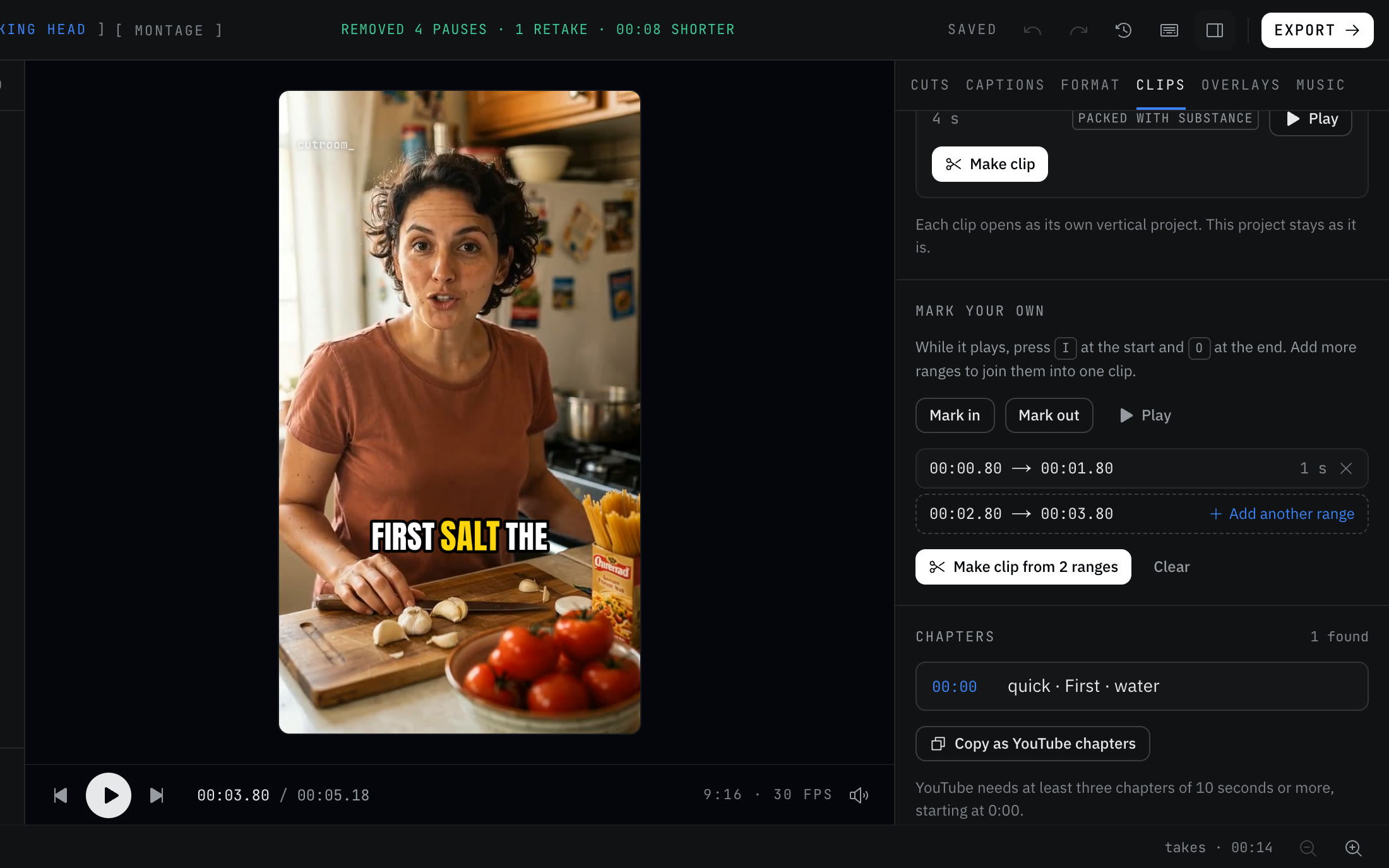
- Cutting your own ranges. Press I and O while it plays, join several ranges into one clip, then move each edge by a frame or a second.
- Clips that look finished. Each one keeps word-timed captions, and the crop follows your face.
- An optional hook line on screen for the first seconds, lifted from the clip's own words.
- Getting them all out at once: Make all, then Export all.
Jobs where it doesn't fit yet
Know the gaps before you move anything.
- No prompt search. You can't ask for "the funny part". The topic search matches words said in the recording.
- No posting or scheduling, and no API. You download the MP4 files and post them yourself.
- No team workspace. Projects live in your browser.
- No XML timeline for Premiere, Resolve or Final Cut.
- No import from a YouTube link. You need the file.
- No stock footage, no generated b-roll, and fewer caption styles than tools that sell style libraries.
Moving your workflow over
Plan on about one sitting for the first recording. After that it's the same steps each week.
- 01Get the source file. Download your original recording as MP4, MOV, WebM or MKV. AVI won't open.
- 02Open the editor in current Chrome, Edge, Arc or Safari 26. There's no account to make.
- 03Drop the file in and wait for the transcript. Speech runs on your graphics card through WebGPU, or on the processor if there isn't one.
- 04Open the Clips tab. Read the attention curve, set a length preset, and search a topic word if you know what you're after.
- 05Check the top picks against the ones you'd have chosen. Nudge edges, or mark your own with I and O.
- 06Choose a destination preset (TikTok, Reels, Shorts, LinkedIn at 4:5) and switch the hook line on if you want it.
- 07Make all, then Export all. Post the files from your phone or the scheduler you already use.
Questions
Does Cutroom AI give a virality score?
No. It gives four plain scores per clip and makes no claim about views. You decide which clips go out.
Can I paste a YouTube link?
No. Fetching a video from a link would need a server, and Cutroom AI never uploads footage. Download your own file first.
Will a long recording use up my plan?
Any recording up to 180 minutes opens on every plan, and clips cut from it export on Free too. The footage limit, 3 minutes on Free, applies to a full cleaned edit of the whole recording.
Is there a phone app?
Not yet. It's in progress. Cutroom AI runs in the browser today.
Sources
- Opus Clip home page, read November 11, 2026
- Opus Clip pricing, read November 11, 2026
- Opus Clip ClipAnything page, read November 12, 2026
Keep reading
Try it on your own footage.
The editor opens in your browser with no account, and the sample project doesn't use an edit.