A Submagic alternative that never uploads your video
Submagic is a captions and clips tool with scheduling. If your priority is a clean edit of your own takes, kept on your own computer, Cutroom AI covers most of that and skips the rest. Here's the detail.
Updated November 12, 2026
| Job | Cutroom AI | Submagic |
|---|---|---|
| Clip a sermon without uploading it | Yes, it stays on your device | Upload to its service |
| Clip from a YouTube URL | No | Yes |
| Schedule the posts | No | Yes |
| Caption in 118 languages | No, 16 spoken languages | Yes |
Facts about other products come from their own public pages, read on the dates under Sources. Products change; check their pages before you decide.
Who looks for one
A typical case is a church media volunteer with a sermon that can't go to an outside service, or a consultant cutting a client workshop. Both want captions and a handful of clips. Neither wants the footage leaving the laptop.
Another is a creator whose raw recordings are messy: three tries at the intro, a sneeze, a long pause while checking notes. Captions won't fix that on their own. The cut has to come first.
What Cutroom AI covers
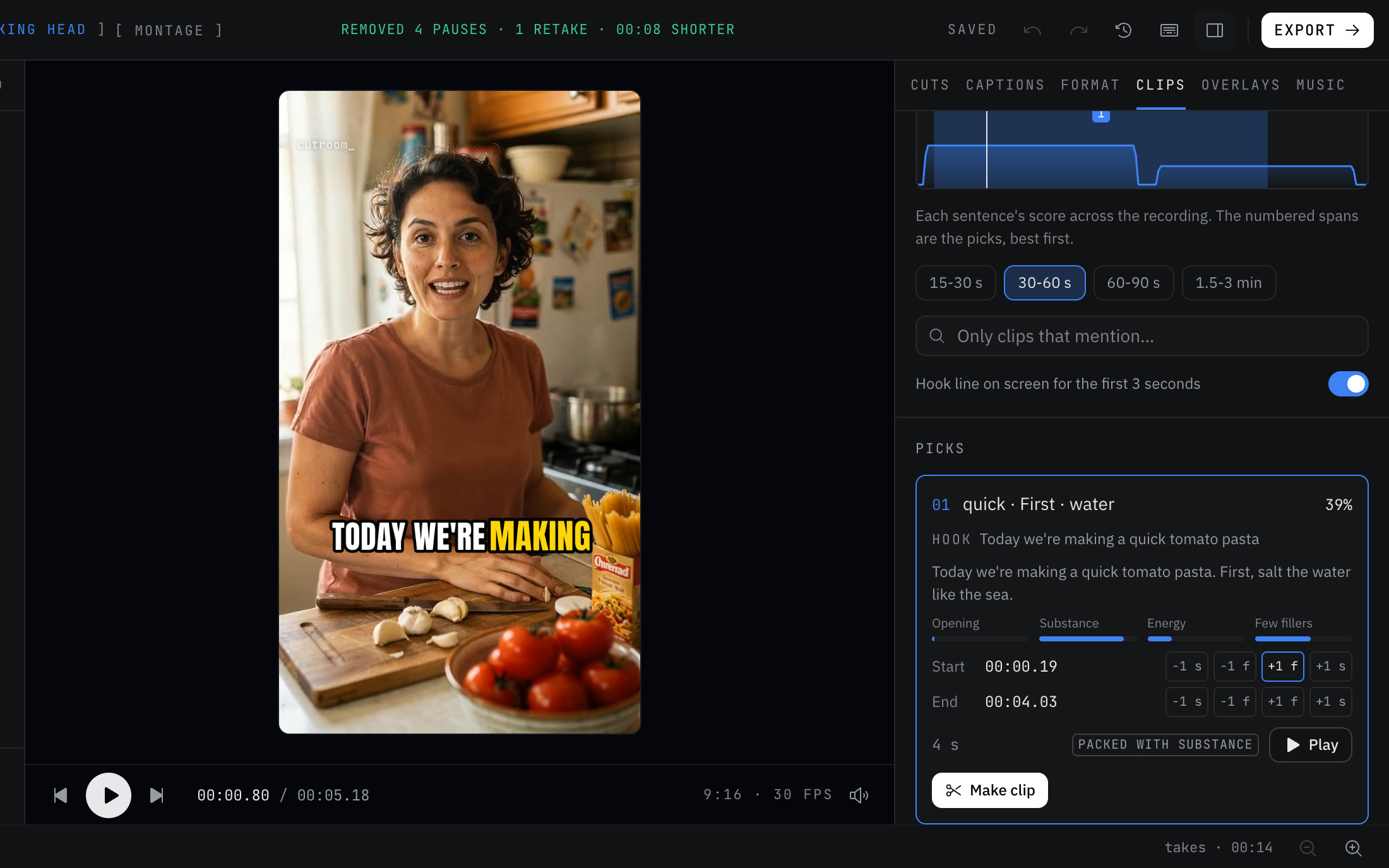
- Clips from a recording up to 180 minutes, ranked with four scores and an attention curve.
- A topic word search over the transcript, so you can find every time you said "budget".
- Retakes and false starts removed, and the best take of each line picked with a reason.
- Captions with a spoken-word highlight and keyword captions, plus SRT export.
- Auto punch-in on jump cuts, and zoom keyframes when you want control.
- Export up to 2160p on Pro, at 30 or 60 fps, with loudness evened to -14 LUFS.
What it doesn't
Most of these gaps are about reach: posting, scheduling, translation, stock media. Cutroom AI stops at a finished file.
- No publishing or scheduling. You download and post.
- No YouTube URL import.
- No AI hook titles. The hook line comes from the clip's own words.
- No stock b-roll or music.
- Captions only in the 16 languages it transcribes, with no translation.
- No brand templates for teams, and no team workspace.
- No AI avatars.
How to switch
If you schedule through Submagic today, you can keep doing that. Cutroom AI's output is a plain MP4 that any scheduler accepts.
- 01Download the source file of the talk. A link won't work.
- 02Open the editor on the laptop that has the file.
- 03Drop the file in. Long recordings are read in windows, so memory stays flat.
- 04In the Clips tab, set a length preset and look over the attention curve.
- 05Search a topic word, mark any extra ranges with I and O, and join them if you need to.
- 06Turn on the hook line if you want it, then Make all and Export all.
- 07Post the clips with whatever scheduler you already use.
Questions
Will clips from a long talk count against my footage limit?
Clips cut from a longer recording export on any plan. The footage limit applies to a full cleaned edit of the whole recording.
Can I edit the caption words?
Yes. Change the words, drag captions to place them, and fix a misheard word once so it stays fixed in new edits.
Can it translate captions?
No. Caption translation is one of the cloud text features that's switched off. Captions come out in the language you spoke, from the 16 it transcribes.
What does the free plan include?
3 edits a month at 720p, with a small watermark. Starter is $9.99 a month for 60 edits with no watermark.
Is the sermon uploaded anywhere?
No. The video and audio stay on your laptop. Only the cut list and transcript text sync, under a random id, so you can open the project in another browser.
Sources
- Submagic home page, read November 11, 2026
- Submagic pricing, read November 11, 2026
- Submagic Magic Clips page, read November 12, 2026
Keep reading
Try it on your own footage.
The editor opens in your browser with no account, and the sample project doesn't use an edit.